How to build a macOS screensaver in Swift: everything Apple doesn't document
· Scanner Techs
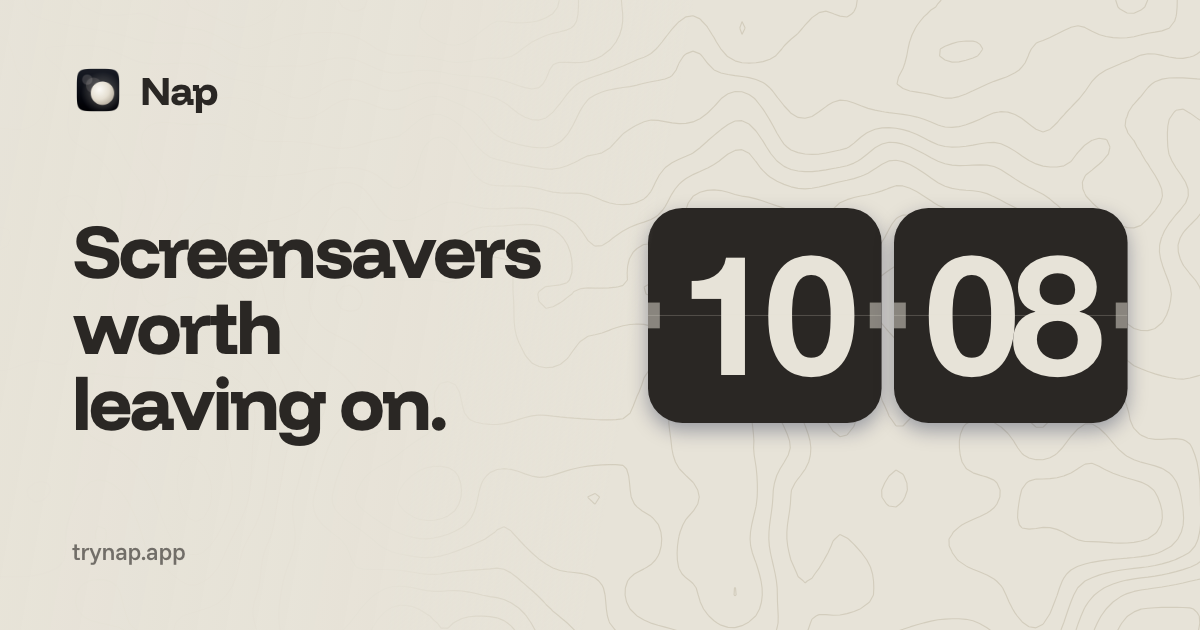
I built Nap, a small paid app that installs a collection of screensavers on the Mac: a flip clock that drifts around the display and bounces off the edges, a football fired out of a slingshot, a pendulum wave, a pen plotter, a self-solving puzzle cube and a paper plane, all over a procedural topographic map.
Screensaver development on macOS is barely documented. Apple’s reference covers the API but not how the thing actually runs, and most of what’s online predates the sandboxed host. The most surprising thing I found: a screensaver moving one small square still costs about 3 W of battery, and nothing in your own code can fix it.
Here’s everything that cost me real time, with the code that fixed it.
How a .saver bundle actually works
A screensaver is a loadable bundle (MH_BUNDLE) whose principal class subclasses ScreenSaverView. I don’t use an Xcode project: swiftc compiles the sources and clang -bundle links them, because swiftc alone only emits executables and dylibs.
The lifecycle is short:
init?(frame:isPreview:)creates the view.startAnimation()/stopAnimation()bracket a run.animateOneFrame()is called everyanimationTimeInterval.draw(_:)paints, like anyNSView.hasConfigureSheet/configureSheetprovide the Options panel in System Settings.
What matters more is where it runs. Your bundle is loaded into legacyScreenSaver, a sandboxed Apple app extension, not into System Settings or your own app. Almost every problem below comes from that.
I kept the ScreenSaverView subclass thin. Everything that draws lives in an Engine/ folder that never imports ScreenSaver, so the same scene renders in the screensaver, in the app’s live preview, or straight to a PNG in a test harness:
@objc(NapView)
final class NapView: ScreenSaverView {
    private let scene: BounceScene

    override func animateOneFrame() {
        let now = CACurrentMediaTime()
        let elapsed = lastTick == 0 ? 0 : now - lastTick
        // Capped, so a stalled frame doesn't make the sprite jump.
        let dt = CGFloat(min(0.05, elapsed))
        lastTick = now
        // ...
        scene.update(dt: dt)
        if !scene.dirtyRect.isEmpty { setNeedsDisplay(scene.dirtyRect) }
    }

    override func draw(_ rect: NSRect) {
        guard let ctx = NSGraphicsContext.current?.cgContext else { return }
        scene.draw(in: ctx, rect: bounds)
    }
}
To check the boundary, compile Engine/*.swift on its own without -framework ScreenSaver. Rendering frames without installing anything was the most useful thing in the project, because installing and triggering a real screensaver is a slow loop.
Problem 1: settings that never reach the screensaver
Symptom. I hosted the Options panel in an ordinary window so I could iterate on it without System Settings. Changing settings in it did nothing.
Why. ScreenSaverDefaults resolves to the host’s container:
~/Library/Containers/com.apple.ScreenSaver.Engine.legacyScreenSaver/Data/Library/Preferences/ByHost/<bundleid>.<uuid>.plistAn unsandboxed process calling the identical API writes to ~/Library/Preferences/ByHost/ instead, which the screensaver never reads. And inside the host, NSHomeDirectory() is remapped into the container, so the screensaver can’t find a file your app wrote by the usual route either.
The fix. I probed the sandbox from inside the running screensaver. Against real absolute paths, the host can read ~/Library/Application Support/, though not write to it, and nothing prompts the user. So the app writes a plain JSON settings file there, and the screensaver finds the real home directory through the password database:
/// The user's real home. Inside the screensaver host `NSHomeDirectory()` is
/// remapped into that host's sandbox container, so it cannot be used to find
/// anything the user or our app wrote.
func realHomeDirectory() -> String {
    if let entry = getpwuid(getuid()), let dir = entry.pointee.pw_dir {
        return String(cString: dir)
    }
    return NSHomeDirectory()
}
The file is layered over ScreenSaverDefaults: reads prefer the file and fall back to the host’s store. Since the two stores can’t be reconciled, the app owns settings, full stop.
Related: on recent macOS, which screensaver is selected lives in ~/Library/Application Support/com.apple.wallpaper/Store/Index.plist, not in com.apple.screensaver moduleDict, which macOS 14 and later ignore. There’s no public API to set it, and that file also holds the desktop wallpaper, so Nap only ever reads it.
Problem 2: you installed the update, and the old one keeps running
Symptom. Copy a new Nap.saver into ~/Library/Screen Savers/ and the old version keeps running. The Options button in System Settings can look dead. Forum posts say it’s broken on modern macOS; in my experience it works, and when it seems dead the host is holding a stale copy.
Why. legacyScreenSaver caches the bundle it loaded, and copying over a live bundle can leave stale files behind.
The fix. When developing: rm -rf the installed bundle, copy the new one, then killall legacyScreenSaver. Every time. The app does the same when it installs:
/// The host caches the bundle, so without this a reinstall appears to do
/// nothing and the settings panel looks broken.
private func restartScreenSaverHost() {
    let task = Process()
    task.executableURL = URL(fileURLWithPath: "/usr/bin/killall")
    task.arguments = ["legacyScreenSaver"]
    task.standardError = FileHandle.nullDevice
    try? task.run()
    task.waitUntilExit()
}
To know whether what’s installed is what it ships, the app hashes the executables, because a weaker check showed a tick next to a stale copy:
private func digest(_ saver: URL) -> String? {
    let binary = saver.appendingPathComponent("Contents/MacOS/Nap")
    guard let data = try? Data(contentsOf: binary) else { return nil }
    return SHA256.hash(data: data).map { String(format: "%02x", $0) }.joined()
}
This bit me again later. The self-updater replaced /Applications/Nap.app but not ~/Library/Screen Savers/Nap.saver, which is what macOS actually loads, so a successful update looked like a failed one. Now the app replaces a mismatched screensaver at launch and restarts the host quietly.
Problem 3: a bundle you can’t unload
The app’s live preview loaded the installed .saver, so after an Update it kept showing the old version until the app was relaunched. A loaded bundle’s code can’t be unloaded from a process. The fix was to preview the copy bundled inside the app, which only changes when the app does.
Problem 4: the battery cost is in the host, not your drawing
This was the most expensive lesson. The numbers below were measured on one 14-inch M4 Pro MacBook Pro, on battery, over one evening, so treat them as one machine’s results rather than a benchmark.
Symptom. A plain black screen drew about 2.9 W for the whole Mac. Nap’s styles, running as the real screensaver, drew 7.1 to 8.0 W. That’s roughly 21 hours of battery down to about 8.
First fix: redraw only what changed. Nap used to redraw the whole screen 60 times a second. Now each style reports the part it touched, and only that plus last frame’s rect is invalidated:
private func markDirty() {
    let display = CGRect(origin: .zero, size: bounds)
    let now = notice == nil ? sprite.redrawRect(at: drawOrigin).intersection(display) : .null
    dirtyRect = redrawAll ? display : now.union(lastRedraw).integral
    lastRedraw = now
    redrawAll = false
}
The football now redraws 2.6% of the screen per frame, the flip clock 23%. If redrawRect misses anything a style draws, like a drop shadow, it smears, so a tool compares every style in every theme pixel for pixel against a full redraw.
Why it didn’t help as much as expected. In an ordinary window the fix cut GPU use from about 15–18% to 2.5–4%. In the real screensaver it saved only 0.3 to 0.5 W. A screensaver moving one small square at 60 fps, redrawing only that square, still cost about 3 W over a black screen, against 0.65 to 1.3 W in an ordinary window. As far as I can tell, legacyScreenSaver pushes the whole screen every frame no matter what you redraw.
The lever that’s left: frame rate. The floor is paid per frame, so Nap’s Automatic setting uses the display’s full rate on power and 30 on battery:
func framesPerSecond(onBattery: Bool, displayMax: Int) -> Int {
    let full = max(FrameRate.saving, displayMax)
    switch self {
    case .smooth:       return full
    case .batterySaver: return FrameRate.saving
    case .automatic:    return onBattery ? FrameRate.saving : full
    }
}
The screensaver’s CPU fell from 37% at 120 fps to 16% at 30, yet power barely moved in the first measurement. Only alternating the two rates in one session showed the real saving: about 0.9 W for the paper plane and 1.1 W for the clock. Measure power, not CPU, and measure it back to back.
Problem 5: small rendering gotchas
-
draw()can run before the firstanimateOneFrame(). The clock painted--on its first frame. Seed the scene ininit:scene.resize(to: bounds.size, scale: backingScale, reseed: true) // Seed the sprite now; draw() can run before the first animateOneFrame. applyLicence() scene.update(dt: 0) -
Shadow units change with context. In your own bitmap context, a shadow’s offset and blur are in pixels; in a window on a Retina display they’re in points, so an offset of 40 moved it 80 pixels. Multiply by the scale when baking a shadow into an image. For a live shadow,
ctx.ctmgives the scale (1 in a window, 2 in a Retina bitmap);userSpaceToDeviceSpaceTransformreports 2 in both. -
Draw cached images at whole pixels. An image drawn into a rect off by a fraction of a pixel is resampled every frame: 13 ms for the plotter’s card, against under 1 ms copied straight.
Animating the flip clock
The clock is drawn with CoreGraphics every frame, with no Core Animation, which lets the engine run outside the screensaver and keeps the dirty-rect logic in one place.
Each card keeps its current and previous digits and how far into a flip it is. A flip lasts 0.64 seconds, in two stages:
- First half: the new digits already sit in the top half. The old top flap collapses toward the seam, hiding them until it’s flat.
- Second half: the new bottom flap opens out of the seam over the old bottom half.
The “rotation” is a vertical scale about the seam, with an opaque backing on each flap and a shade that fades as it opens.
The easing is a plain smoothstep, x * x * (3 - 2 * x). Progress advances by the frame’s dt rather than by frame count, so a flip takes the same time at 30 fps on battery as at 120 on power. Because dt is capped at 0.05 s, a stalled frame slows the flip down instead of skipping it.
Shipping it without being notarized
Install without a Gatekeeper warning
I don’t have an Apple Developer account, so Nap isn’t notarized. It’s signed with my own self-signed certificate, which gives every build a stable identity, but anything downloaded in a browser is quarantined and macOS warns on first launch. The DMG is still there, with instructions for Privacy & Security → Open Anyway.
The other path is a one-line Terminal install:
curl -fsSL https://trynap.app/install.sh | bashcurl doesn’t set the quarantine flag, so Nap opens without a word. The script checks a SHA-256 against what the site published, verifies the signature, and installs without sudo.
Updates come from inside the app, never a browser, for the same reason. The updater checks the checksum and the Scanner Techs signature before swapping the bundle in. One trap: App Translocation. macOS runs a quarantined app from a random read-only path, where it can’t replace itself. The updater detects that (bundleURL.path.contains("/AppTranslocation/")) and points people at the install page instead.
License keys with an offline grace period
Nap is free for two days, then a one-off purchase through Dodo Payments, with no server of mine in the loop.
- The app activates, validates and deactivates keys with Dodo directly. One key per Mac.
- Dodo’s activation accepts any key from any Dodo product, so the app checks that the product in the reply is Nap’s. Easy to miss if you sell more than one app.
- The screensaver never talks to the network. The app does all the checking, so a process you don’t control isn’t making web requests.
- If Dodo can’t be reached, the license keeps working for 14 days, counted from the first failed check rather than the last success.
- When the trial ends, the screensaver shows the map with one dim line of text and drops to one frame a second.
Bonus: the same designs on Android
Nap is also an Android live wallpaper. It shares no code with the Mac: it’s Kotlin, drawing the same designs on Android’s canvas. What’s shared is one design-tokens file with every style’s colors, the contour map, the backgrounds, and the flip clock’s proportions and timings. A script checks the Mac and the website against it and generates Android’s tokens, so nothing quietly drifts between platforms.
Keeping the Mac engine free of ScreenSaver from day one is what made the port a translation job rather than an excavation.
What I’d do differently
- Measure power on day one. I measured after building six styles, then found the host’s per-frame floor makes most rendering optimizations worth a fraction of what they look like in Activity Monitor.
- Use a file for settings from the start. I began with
ScreenSaverDefaultsand an Options sheet, and both became fallbacks once the app owned settings. - Treat “installed” as “the installed executable matches”. Every check weaker than a hash showed a tick next to stale code at some point.
If you want to see where all this ended up, Nap is at trynap.app: free for two days, then $5 once. It runs on macOS 13 or later, on Apple silicon and Intel.
All posts · Nap is our own collection of screensavers for the Mac. Install it and the first two days are free.